To isolate one voice from a recording, first separate the conversation into speaker tracks. Listen to the outputs to find the person you want, then download only that person's WAV file. The WAV keeps the original timing, including pauses while that person is silent.
Use this workflow to keep a guest's answer or your own contribution from a spoken conversation. It is not a method for separating two singers in a song.
The workflow: separate the speakers → confirm the voice at two or three known passages → download that track. Follow the steps, or jump to the download example.
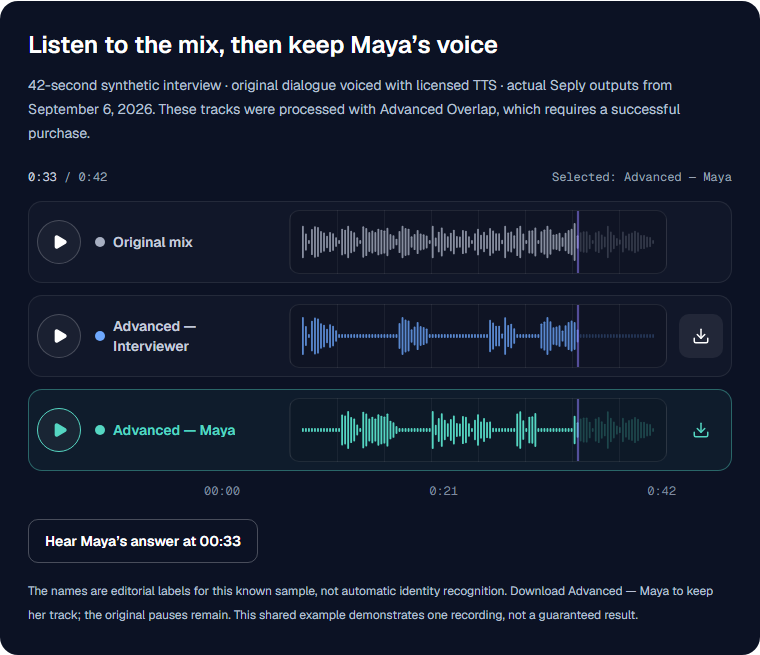
Hear the original conversation and the voice to keep
42-second synthetic interview · original dialogue voiced with licensed TTS · actual Seply outputs from September 6, 2026.These tracks were processed with Advanced Overlap, which requires a successful purchase.
- Reading the real waveform
- Reading the real waveform
- Reading the real waveform
The names are editorial labels for this known sample, not automatic identity recognition. Download Advanced — Maya to keep her track; the original pauses remain. This shared example demonstrates one recording, not a guaranteed result.
The goal here is to keep Maya, the guest. Compare Original mix with Advanced — Maya, or use Hear Maya’s answer at 00:33 to jump to her closing answer. The interview test and source conditions document these same source and unmodified output files. This is not a customer recording.
Where to download Maya in this article's demo
 Open full-size image ↗
Article demo screenshot, captured September 8, 2026: Advanced — Maya is selected, with her WAV download control on the right. This shows the public listening example above, not a signed-in task result.
1. Separate the conversation
Open the speaker separation workspace, sign in, and upload a recording you own or have permission to use. If the speakers mostly take turns, start with Standard. Set the known speaker count or use automatic detection.
For people speaking at the same time, consider Advanced Overlap, which detects speakers automatically. Check the mode and estimated credits before processing. The formats and limits at the end cover billing and purchase requirements.
If you need the full setup walkthrough, use how to separate two voices in one audio file. This guide focuses on what to do once the speaker tracks are available.
2. Find the voice you actually want
Do not assume that Speaker 1 is the person you want. The numbered rows in a task can appear in a different order from the named tracks in this article's demo.
Choose two or three places where you already know what the person says. For an interview, these might be an introduction, a clear answer in the middle, and a closing comment. Compare each place on the original and the candidate track. Confirm that it contains the same person throughout.
Use Maya's answer after 00:33 as one check in the shared example, then compare an earlier answer. If an expected word is missing, listen to the other track too before choosing what to download.
3. Download only the target track
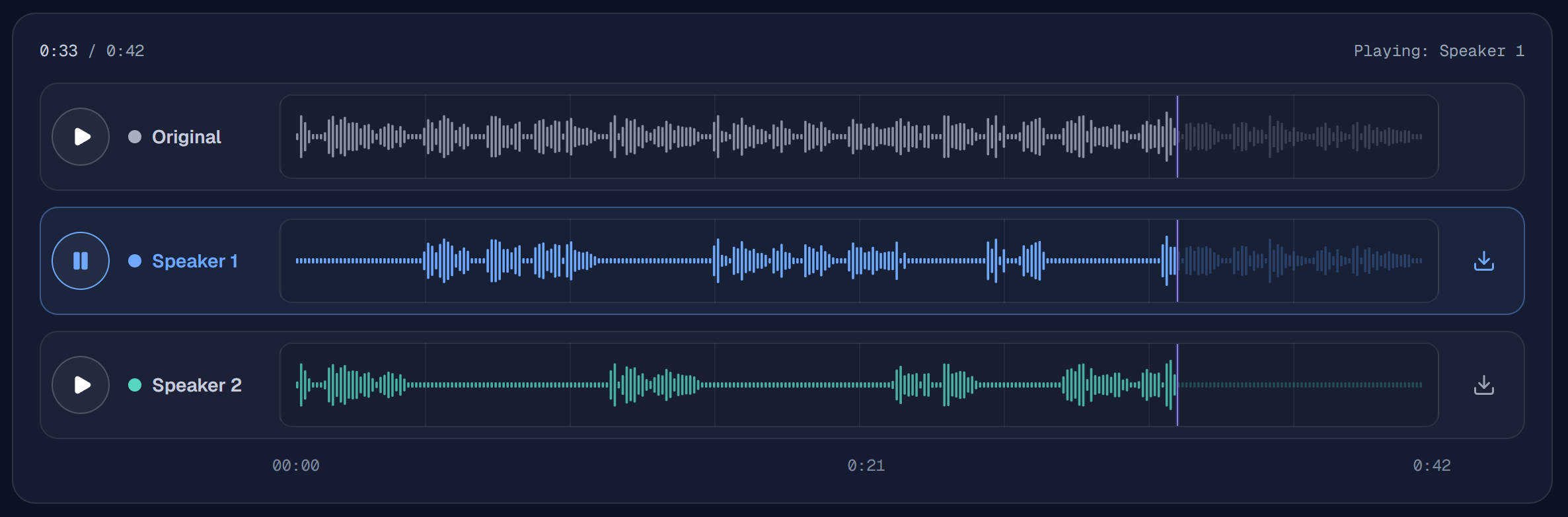
Once you have confirmed the voice, use the download arrow at the right of that speaker's row. The play control is on the left. You do not need to download every speaker.
 Open full-size image ↗
Actual task result: Speaker 1 is selected at 0:33 of a 0:42 recording. If this is the voice you confirmed, use the download arrow on that same blue row to save only its WAV. The screenshot shows numbered tracks; it does not establish which person Speaker 1 contains or show the processing mode.
The downloaded file is WAV even if you uploaded MP3. You can reopen a completed task in your history during its 30-day result-access period.
Why the downloaded voice still has silence
For an illustrative timeline, suppose the interviewer speaks from 00:00–00:04 and the guest starts at 00:04. The guest's WAV keeps those first four seconds in place: the file may start with silence, and the answer still begins at 00:04. This explains the timing; it is not a measurement of the sample above or a promise of perfectly silent gaps.
- For video: place the WAV at the same start position as the source recording. Keep the pauses so the voice stays synchronized with the picture.
- For a short audio clip: trim unwanted pauses in an external audio editor after downloading. Seply does not automatically remove them from the single-track export.
4. Check the parts where both people speak
Downloading one speaker does not preserve every background sound from the recording. Music, room sound, and incidental noises can change during separation. If those sounds matter to your finished edit, review the full mix in your editor rather than assuming that a speaker track contains them unchanged.
For sustained overlap, see how to separate two voices talking at the same time.
Common questions
Can I remove the interviewer and keep the guest?
For a guest-only export, use the track you confirmed in the steps above. To keep parts of both sides, import both WAVs into your editor and lower the interviewer where needed. Follow the interview editing workflow for that use case.
Can I isolate my own voice from a group recording?
Yes, the same workflow applies. Standard supports a known count of up to 10 speakers or automatic detection; Advanced detects the count automatically. Brief contributions and similar voices can make it harder to find a consistent track.
Can I choose the person before uploading?
No. Seply does not use a name, photograph, or reference voice sample to target a person before separation. Choose the resulting track by listening after processing.
Is keeping one voice free?
Selecting and downloading a completed track does not change the processing rate. New accounts receive 20 trial credits, valid for 30 days, for up to about 2 minutes of Standard Separation. This article's sample is available to preview and download without signing in or processing your own recording.
Formats and limits
- Accepted input
- Standard:WAV, MP3, M4A, AAC, FLAC, MP4, MOV.
Advanced Overlap: WAV, MP3, M4A, AAC, FLAC, MP4, MOV. MP4 and MOV must contain AAC or PCM audio. - Output
- One time-aligned WAV track per detected speaker
- Upload limit
- Up to 1 GB; Advanced Overlap: up to 90 minutes
- Billing increment
- Standard Separation: 10 credits per started minute, 10-credit minimum.Advanced Overlap: 60 credits per started minute, 60-credit minimum.
The server-calculated duration is rounded to the nearest whole second before billing. Check the exact credit estimate before processing.Advanced Overlap requires a successful purchase; trial credits cover Standard Separation.