To reduce background noise in a voice recording, upload the original audio to Seply Voice Isolator. Compare the same passage before and after processing, then download the cleaned audio once the speech sounds clear.
Hear the same recording before and after
This office sample is about 14.7 seconds long and has one speaker with background noise. The two tracks play the original file and its actual Seply Voice Isolator result. Around 00:07 and 00:12, switch versions and listen for what happens to the background between words and as the next phrase begins.
- Reading the real waveform
- Reading the real waveform
Identify the problem in your recording
Start with a short passage that sounds like the rest of the recording. Steady room noise under speech is a reasonable place to try cleanup. For a brief interruption, listen to the words it covers and decide whether that part can be edited or rerecorded. A badly distorted sentence can stay hard to understand after the background gets quieter.
If the sound you want to remove is someone else speaking, start with the guide to voice isolation and speaker separation. It shows the difference between cleaning a mix and getting a separate track for each voice.
Clean the recording in Seply
1. Choose an audio file
Keep a copy of your original. Sign in to open Voice Isolator and select the audio you want to clean. To test part of a long recording, export a short excerpt from your editor and upload that excerpt.
2. Check the estimate and submit
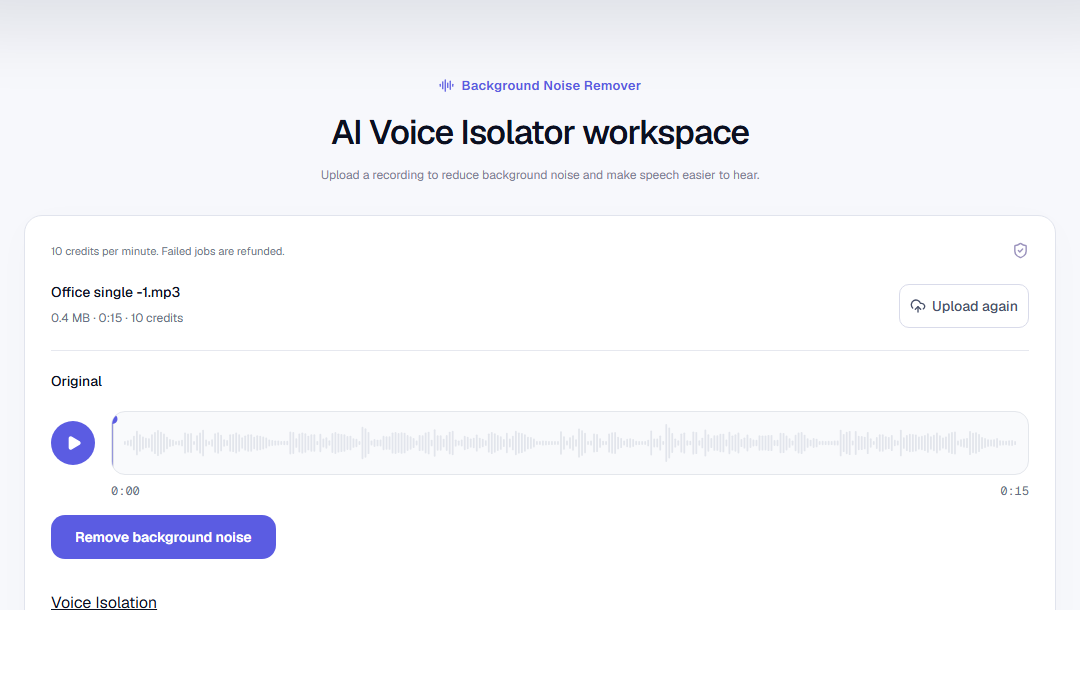
After Seply reads the file duration, review the estimated credits beside the action button. Select Remove background noise when you're ready. Keep the page open until the upload completes and the task is submitted. You can then check its progress in your dashboard history.
 Open full-size image ↗
The selected file shows its duration and estimated credits before submission.
3. Compare the result and download
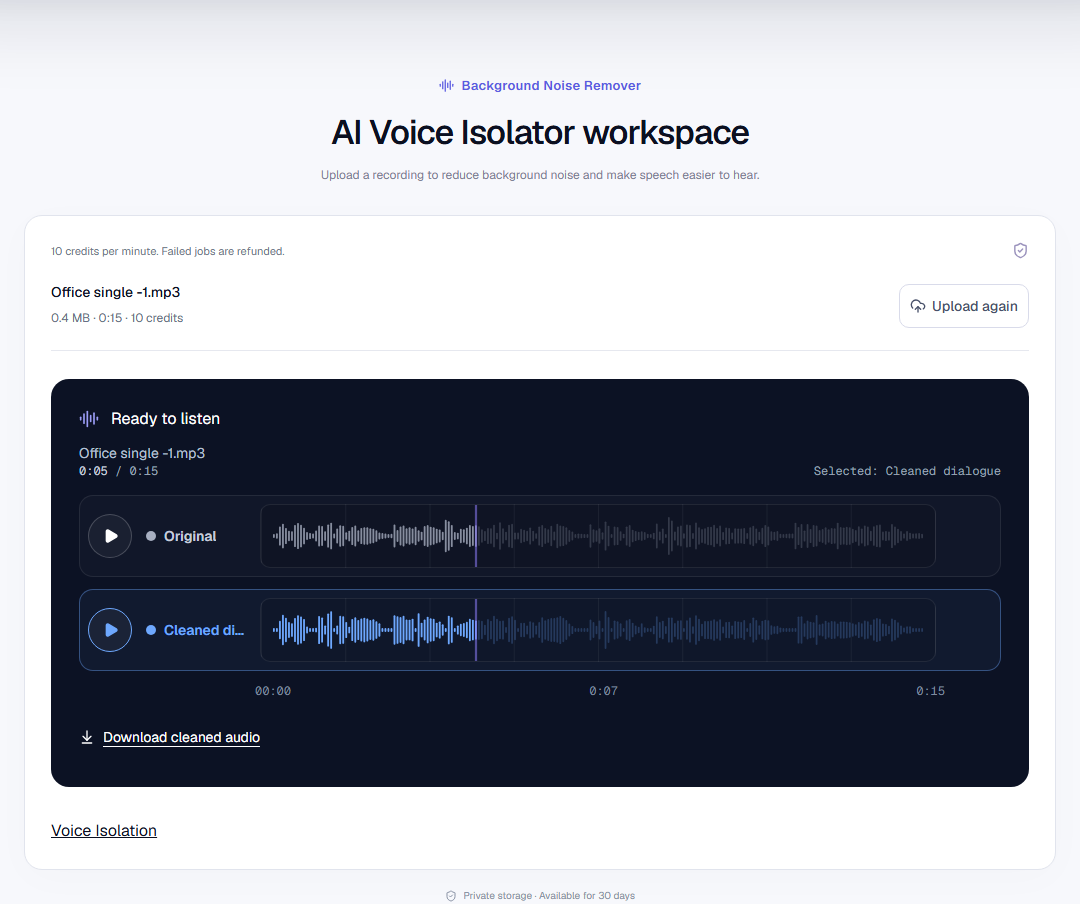
In the result, use Original and Cleaned dialogue to compare the same part of the recording. When the result is ready for your edit, select Download cleaned audio and save it alongside your source file.
 Open full-size image ↗
The result interface is shown in a local demo with the same original file and its actual cleaned MP3 from the listening example.
Check that the speech still sounds right
Compare the same phrase in both versions at a comfortable listening level. Start with a quiet reply or the end of a sentence, then try a passage where the noise is especially noticeable. Listen for accidentally softened consonants, missing syllables, or a jump in the background sound as speech starts and stops. If an important word sounds better in the original, keep that passage on hand for the edit or consider recording it again.
For a full episode, use the podcast noise reduction workflow to choose which source tracks to clean and check each speaker before exporting.
Formats and limits
- Accepted input
- AAC, AIFF, OGG, MP3, OPUS, WAV, FLAC, M4A.
- Output
- One cleaned audio file for listening or editing.
- Upload limit
- Audio only. Up to 500 MB and 60 minutes per file.
- Billing increment
- Voice Isolation: 10 credits per started minute, 10-credit minimum.
The server-calculated duration is rounded to the nearest whole second before billing. Check the exact credit estimate before processing.
Common questions
Can I clean the audio from a video?
Export the dialogue or the video's audio track in your editor, then upload that audio file. Reimport the cleaned file at the same starting point and check lip sync near the beginning and end.
Do I need a separate sample of the room noise?
You can upload the recording as it is. You don't need to select a noise-only stretch for Seply before processing. Pauses that contain room noise are useful places to listen when you compare the two versions.